Question Banks and Question Types
5. Short answers

Short answer questions require respondents to type a word or phrase in response to a question (that may include an image). Answers may or may not be case sensitive and can include more than one correct answer. Acceptable answers can be a word or a phrase, but must match one of your correct answers exactly. It is a good idea to keep the required answer as short as possible to avoid missing a correct answer that is phrased differently.
Example of a short answer question:

Create a Short Answer Question
Step 1: In the Question Bank, select the desired question category, then click Create a new question... and choose Short answer. The Adding a question screen will open.
Step 2: Check the category – make sure the question is where you want it to be. Here that’s under Vocabulary, Finance and Investment.
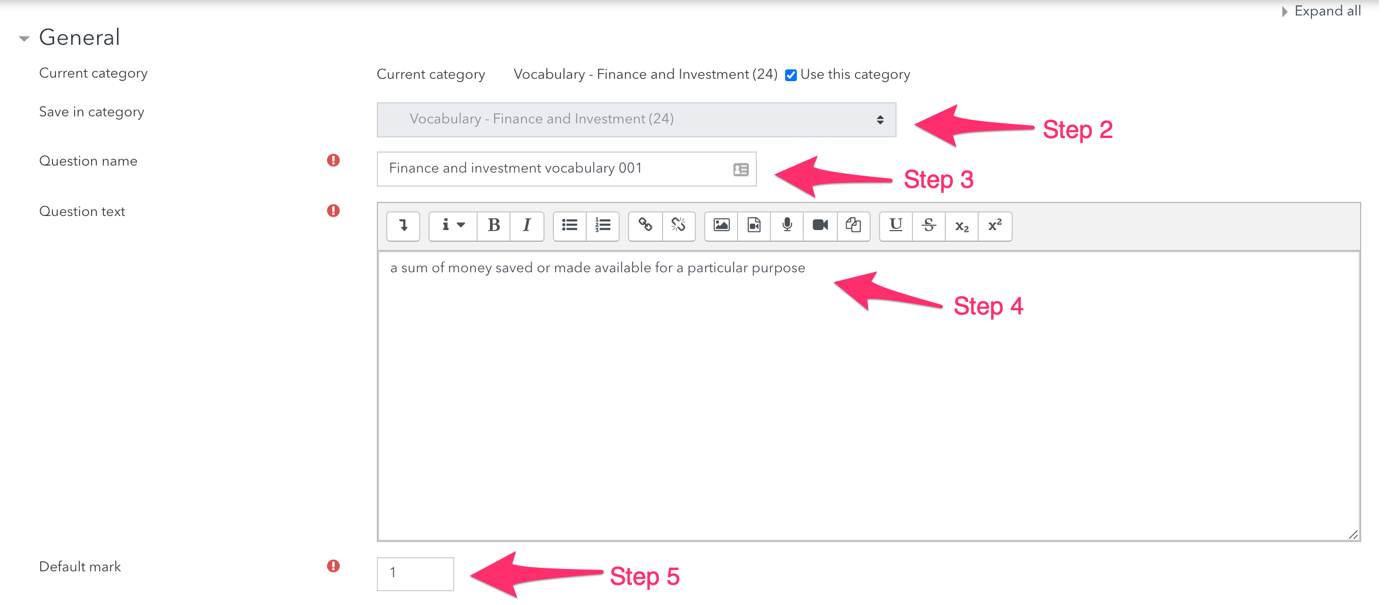
Step 3: Give the question a descriptive name - this makes it easy to identify it in the question bank. The question name is not visible to students.
Step 4: Enter a question in the Question text field to tell the students what they are matching (Such as "Match the invention to its inventor"). Images, audio, and video can also be inserted into this field using the HTML editor toolbar.
Tip: if the answer is intended to fill a gap in the text, use underscores ( __ ) to indicate where the gap is.
Step 5: Set the Default mark grade (i.e. the maximum number of marks for this question).
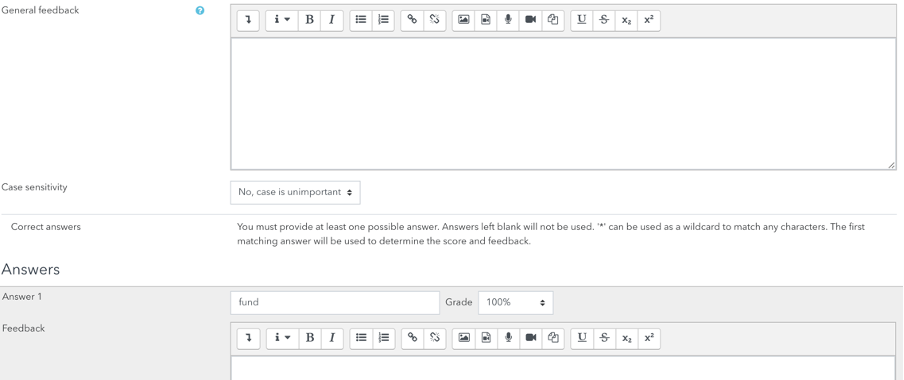
Step 6: Choose whether the answers are case-sensitive. Case sensitivity can be tricky where capitalisation is important.
Step 7: Fill in the answers you will accept. Fund, fund, funding
Step 8: Add grade for each answer. To mark correct answers, select 100%.
Step 9: (Optional) You can also select wildcard answers that will award credit or partial credit for a response
Step 10: Click Save changes to add the question to the category.
After creating a question, be sure to check to make sure the question works correctly. Click edit next to the question in the Question bank to view a preview of the new question.