Question Banks and Question Types
3. Multiple Choice Questions
In response to a question (that
may include an image), the respondent chooses from multiple answers. There are
two types of multiple-choice questions - single answer and multiple answers.
Example of a multiple-choice question:
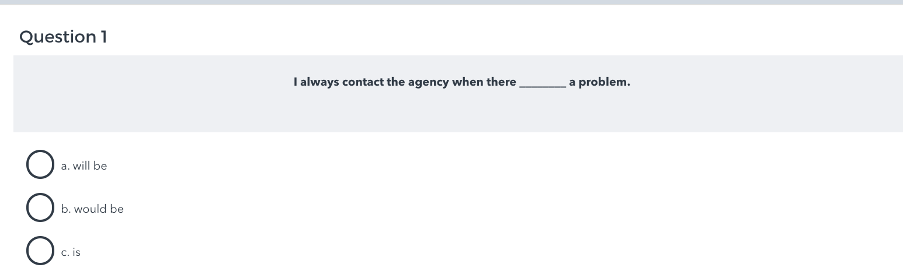
Question set-up
Step 1: In the Question Bank, select the desired question category, then click Create a new question... and pick Multiple choice. The Adding a question screen will open.
Step 2: Give the question a descriptive name - this makes it easy to identify it in the question bank. The question name is not visible to students.
When you create a question you will generally be creating a series of questions – so here we have used the kind of grammar “Conditionals mixed” the type of question “QCM” and the question number.
Step 3: Enter a passage of text into the Question text field. Images, audio, and video can also be inserted into this field using the HTML editor toolbar.
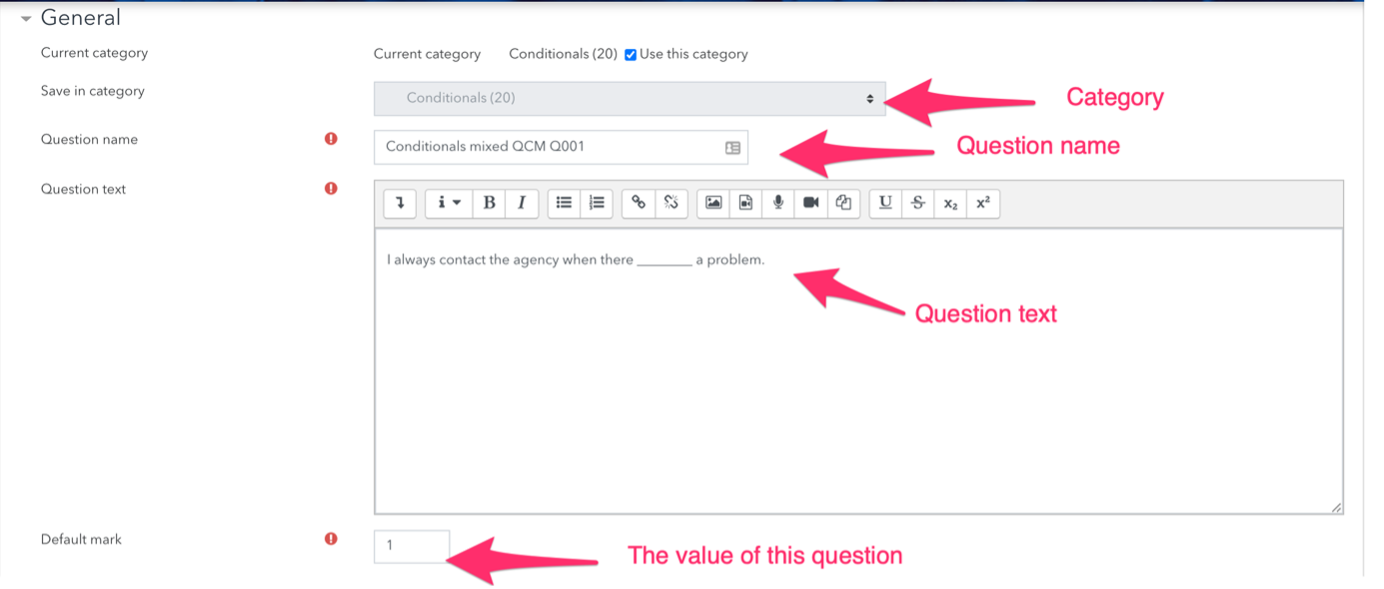
Step 4: Set the Default mark by entering a numerical value (i.e. the maximum number of marks for this question).
Step 5: Choose whether students can only select one answer or multiple answers.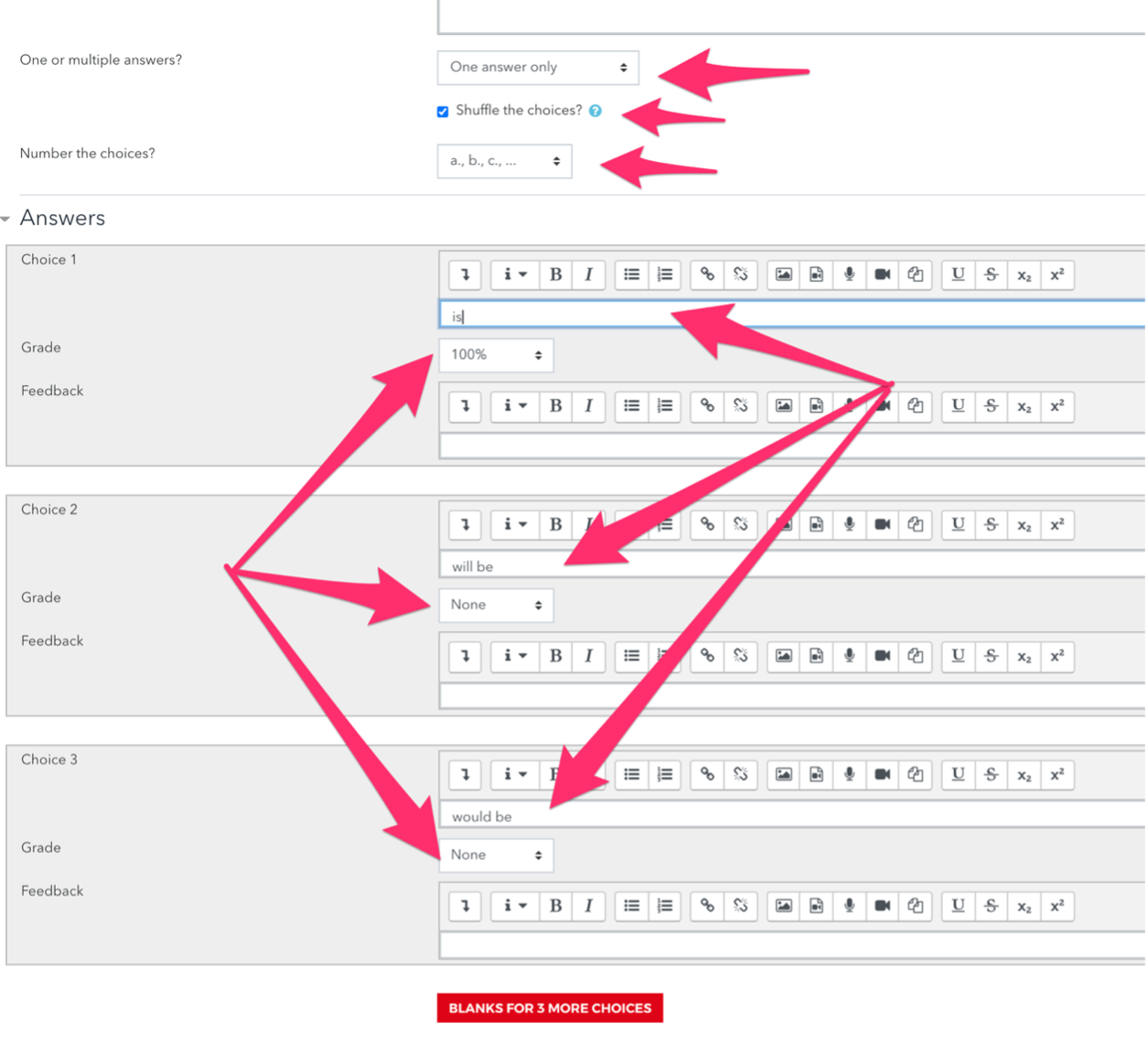
Step 6: Choose whether to shuffle the answer options – I’d recommend always choosing to shuffle as it makes cheating a lot harder for students.
Step 7: Write the first answer in the Choice 1 text field. This will be one of the possible answers that students can select. In addition, select a grade percentage for this answer, 100% to mark it as the correct answer.
Selecting values less than 100% will assign partial credit. Fill in the rest of the response choices in the rest of the form. Any unused areas will be ignored.
Note: At least one of the choices needs to be marked as 100%.
Step 8: Click Save changes to add the question to the category.
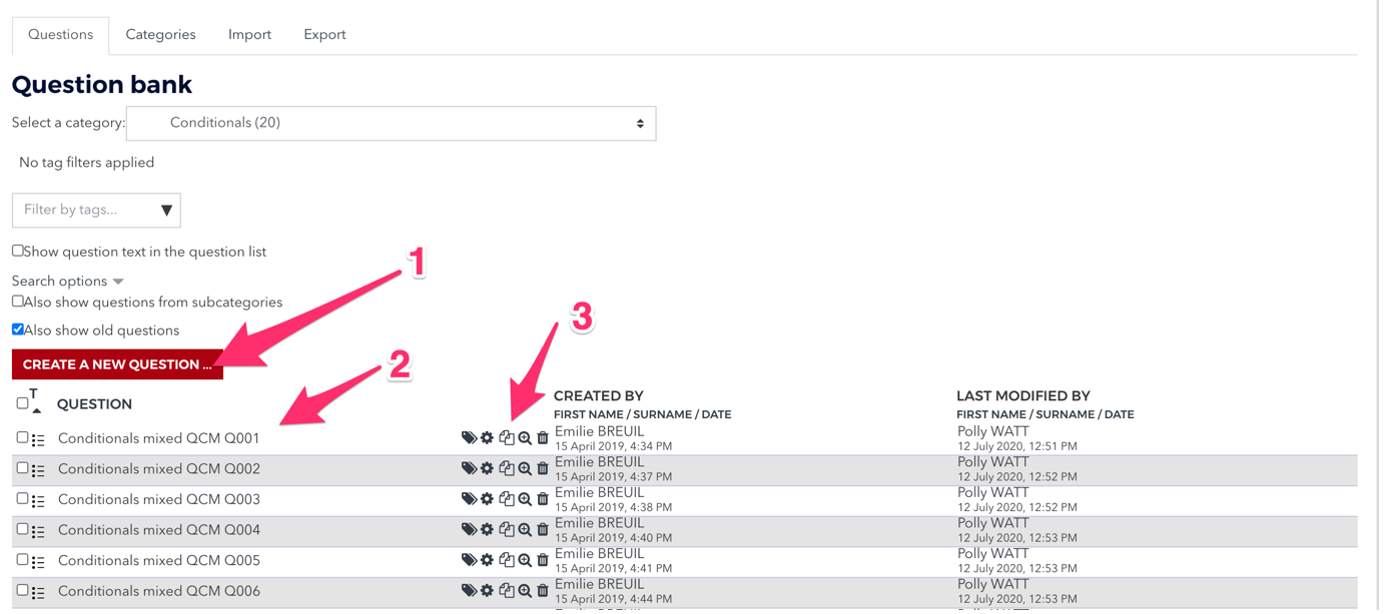
Step 9: Click on the double page symbol to copy your question. This is the best way to create a series of the same type of questions with the same settings.
Step 10: Change the number of the new question to Q002 in the series and fill in the new question text and answer text. Always put the correct answer in field one.
Step 11: Create more questions than you will use in your test – so for a 20 question test the ideal would be to have 30+ questions, this will ensure that all the students have different questions during a quiz – again ensuring that cheating will be harder.
You can now use your questions to create an in-class quiz where no two students will have an identical quiz, hopefully making in-class cheating much harder.
The question bank keeps all the questions you have ever created.