CREATING A MARKING GRID OR RUBRIC
2. Advanced Grading
Step 2: On the Advanced grading page, click Define new grading form from scratch. The Define rubric page will open. 
Step 3: Enter a Name and Description for the grading form.
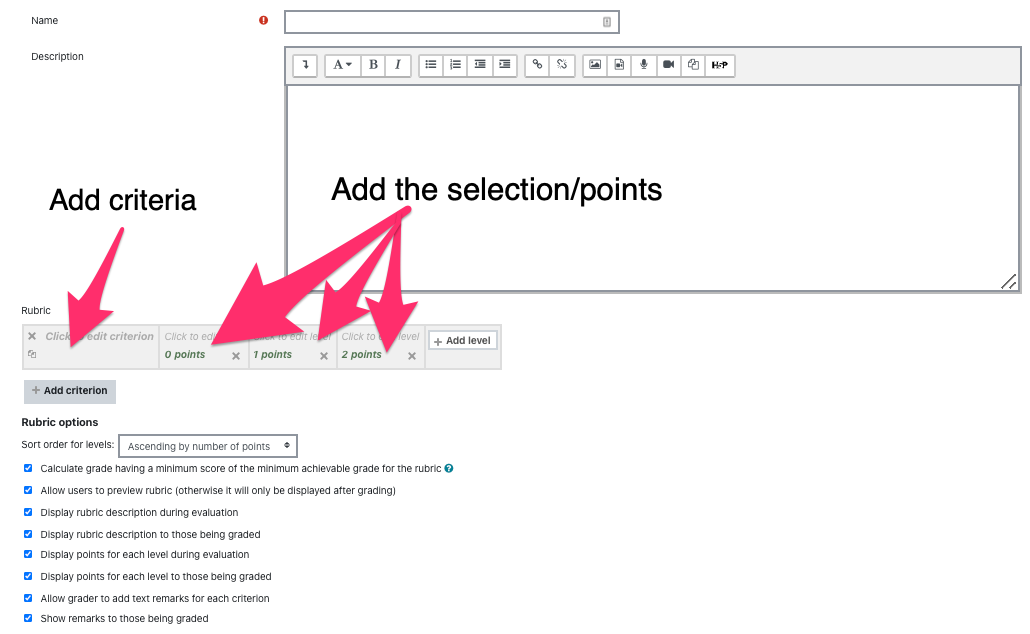
Step 4: To add criteria (the specific elements to be graded): For a Rubric the rubric will start out with one blank criterion in a row.
- Select Click to edit criterion. A blank entry box will appear. Enter a description for the Criterion.
- The following boxes represent Levels/Selections for rating student performance. Graders will select the level that best describes the student's performance for that criterion.
- For each level select Click to edit level to add a description. To edit the points awarded for each level, click the points value.
Note: You must start with a level that has a point value of ZERO (eg., scale ranging from 0-3). If you do not include a "0" level, the rubric grade will not calculate correctly.
- To add a level, click Add level (at right). A new column will be added to the row.
- To add a criterion, click + Add criterion (below row at left). A new editable box will appear. A new row will be added to the rubric table, opened to a description entry box. Enter the criterion description and edit the descriptions (and point values, if needed) for the levels.
- To delete a criterion or a level, click Delete (X).
- To duplicate a criterion, click the Duplicate criterion icon ( ) (below the X at top left). This allows you to quickly make a copy of a row that you can then edit.
Select the Rubric options for the assignment: These mostly control how much of the rubric your students can see and when; and for Rubrics, whether graders will have an entry box for additional text comments.
When you have filled out all the criterion and definitions, click Save rubric/grading guide and make it ready. You can also click Save as draft to save without having to complete the criterion and level definitions.
Note: You can always come back and edit your rubric by opening the Assignment, navigating to the Actions Menu (Gray gear icon) >Advanced grading, and clicking Define rubric.