Adding Resources to Moodle
| Site: | Watt Education |
| Course: | Setting up a Moodle Course |
| Book: | Adding Resources to Moodle |
| Printed by: | Guest user |
| Date: | Saturday, 17 October 2026, 3:50 AM |
1. Adding a resource to a Moodle Course
Moodle allows you to post
multiple files at once in a Folder. Folders can contain files such as PDFs,
Word documents, or image files, but cannot contain Moodle Activities (such as
Quizzes, Assignments, and Forums) or Resources (such as URLs or Pages).
§ File
Post a file for your students to download. A File can be a
text document, a spreadsheet, an audio file, video file, etc.
§ Folder
To save space on your Moodle course page, you can put multiple files in a Folder.
§ IMS content package
Upload and post content packaged in the IMS format, typically from text book
publishers.
§ Label
Organize and add visual interest to your course home page by using Labels to
add sub-headings, annotations, and images to Topic or Weekly sections.
§ Page
Students see a single, scrollable page that an instructor creates with the
robust HTML editor.
§ URL
Send your students to any location they can reach on their Web browser.
You can upload individual files or a .zip file containing several files on your computer to a Folder. You can update the folder to add additional files, rename files, or move them into sub-folders.
Note: You must first use the Activity Chooser to add a folder, as detailed below. You can then drag-and-drop files into the upload box on the Adding a new folder page. You cannot use drag-and-drop a "folder" from your computer onto your Moodle course page, but you can drag-and-drop a .zip file and opt to unzip and create a folder.
2. Add a File to Moodle
Step 1: First navigate to your course page. 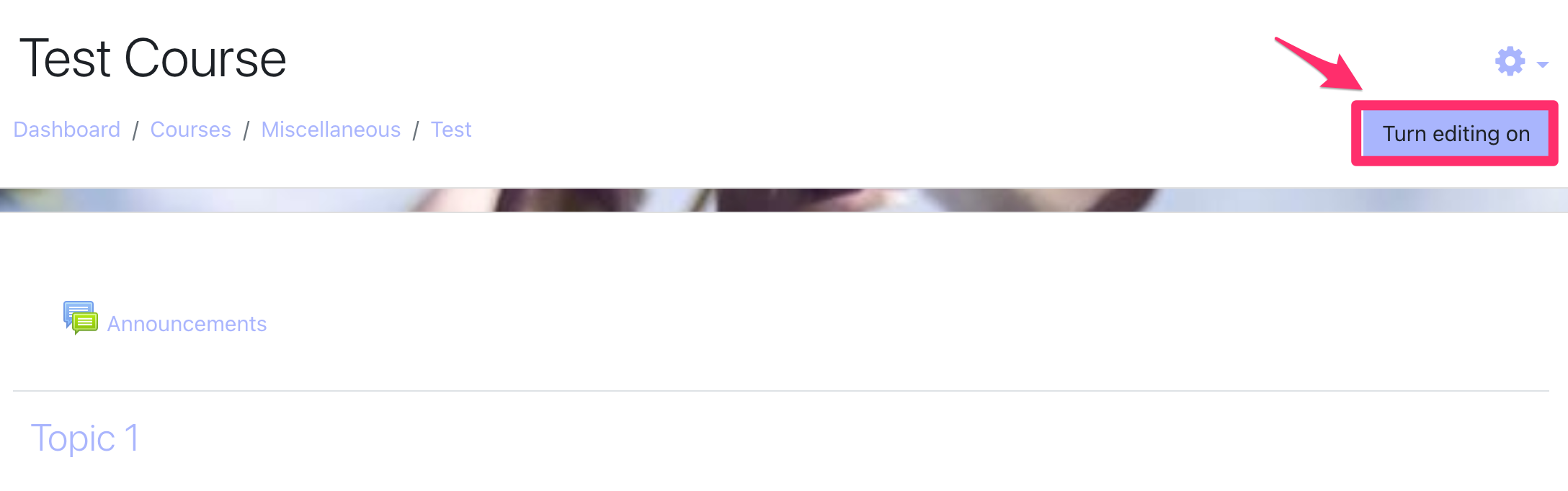
Step 2: Click on Turn editing on, at the top right of the page.

Step 3: In the Section where you want the activity to appear, click + Add an activity or resource. The Activity chooser dialogue opens.
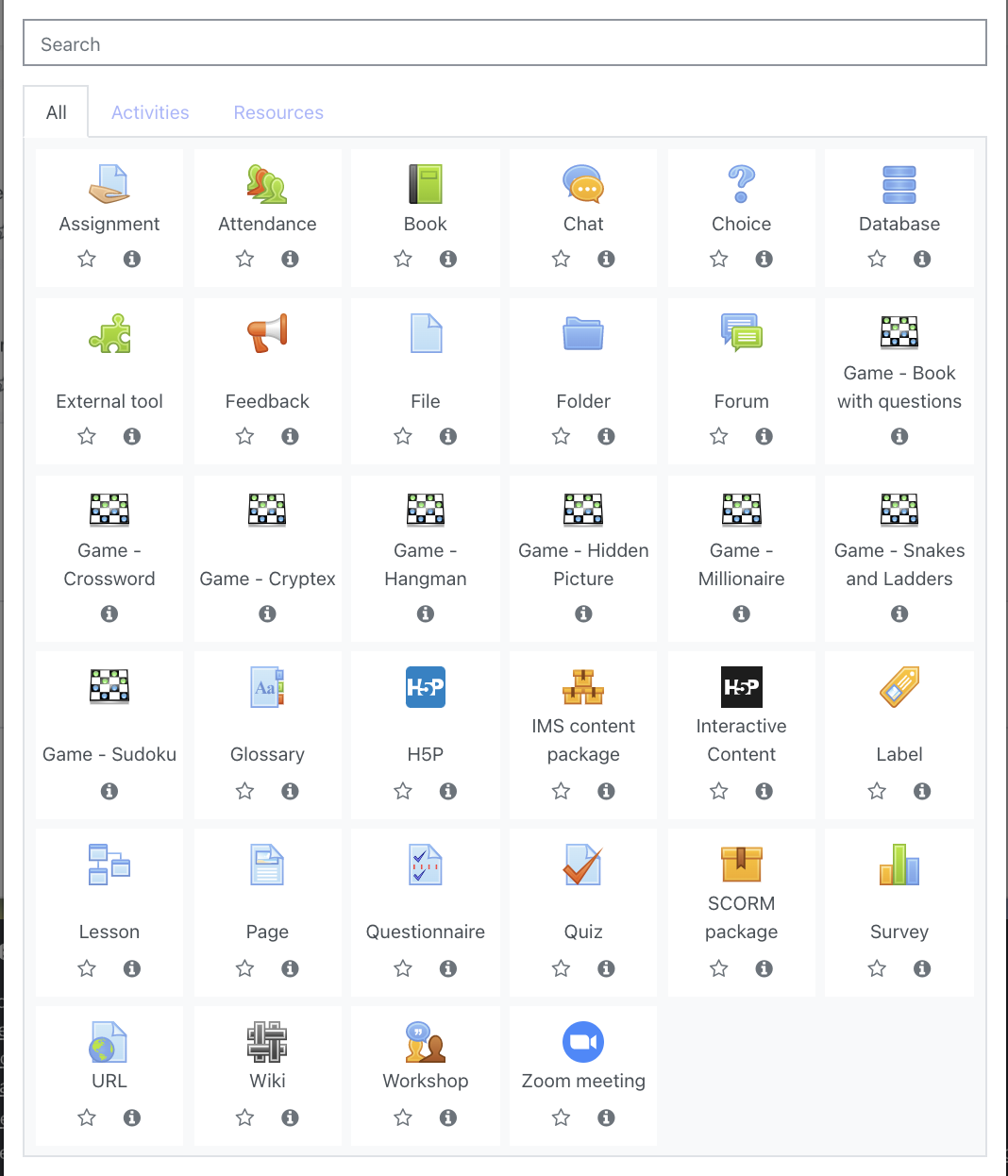
Step 4: Select an activity. The right side of the dialogue will change to show a description of the activity and support links.
We are going to start by adding a Resource - so click on the resource section and start by choosing a file to add to your course.
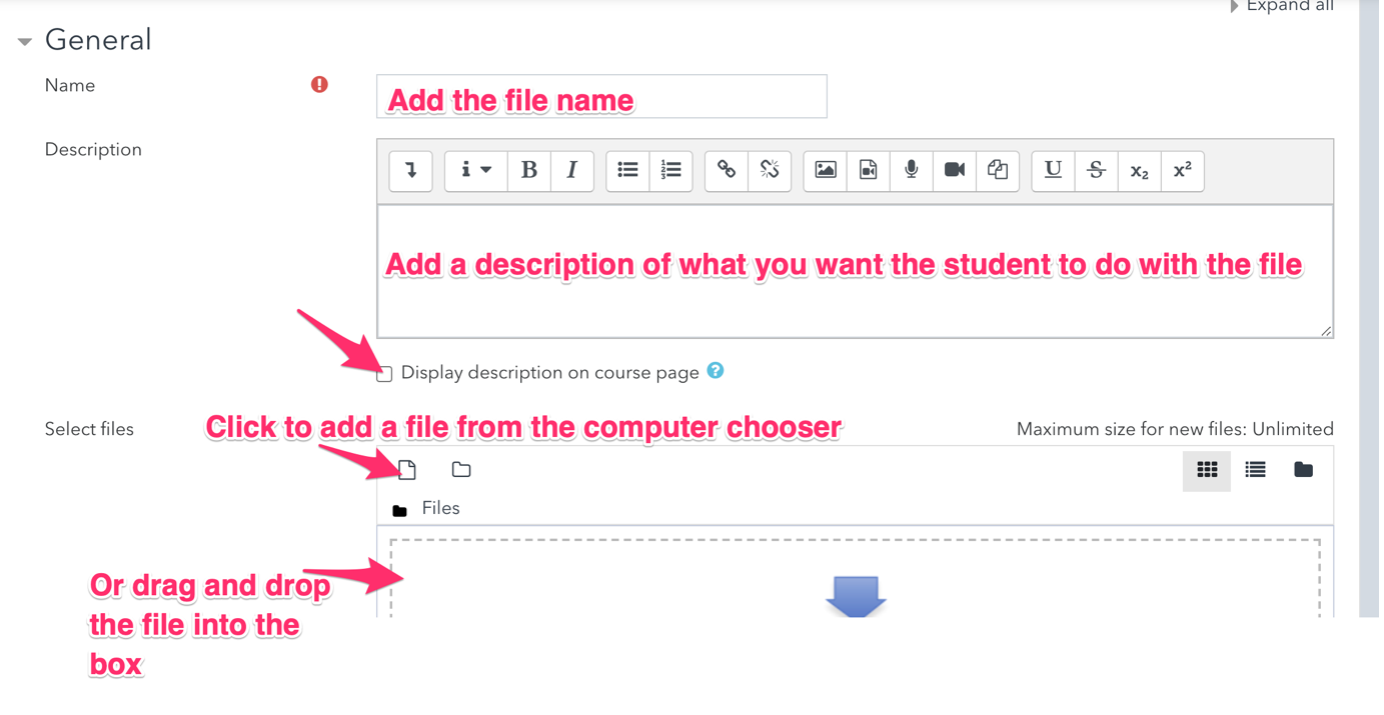
Step 5: Clicking File takes you through to the following screen. You will need to:
- Add the file name
- Add a description of what you want the student to do with the file
- Select the box that displays the description on course page
- And then add your file either by clicking on the page symbol or by dragging and dropping from your computer.
NB You can only add one file at a time using this method, but you can repeat the method to add multiple files to a topic.
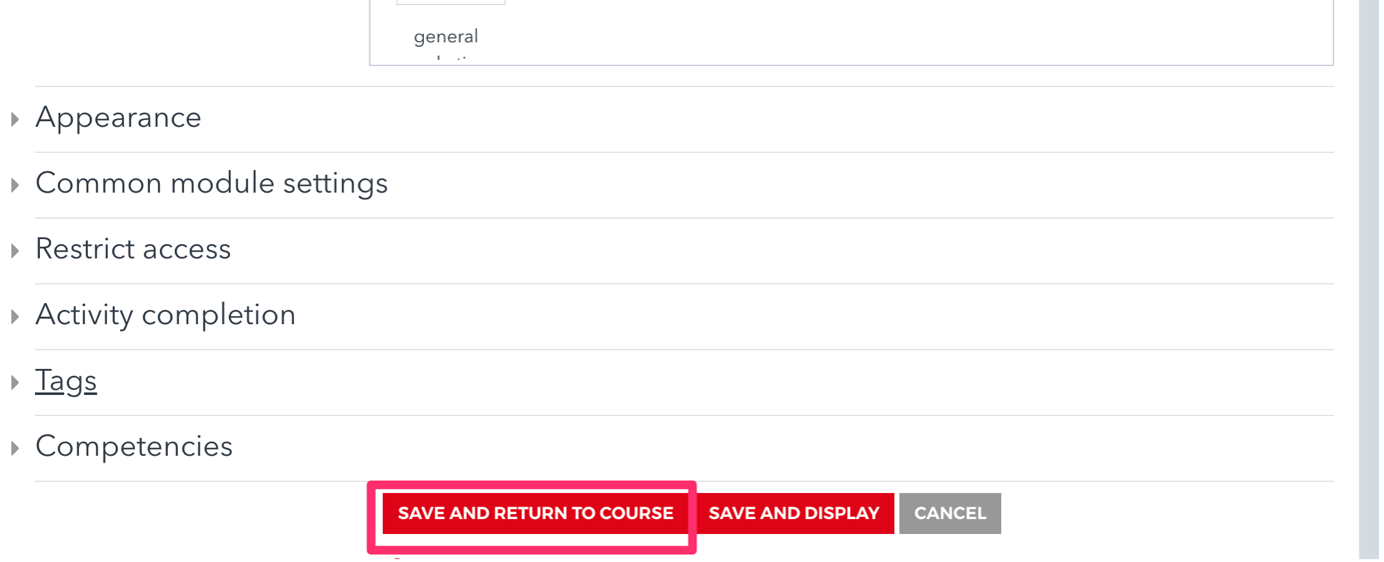
Step 6: Once you have filled in the different fields you will need to save the file by scrolling to the bottom of the page and clicking on Save and return to course and check its appearance on the page.
Note: If you wish to restrict access for certain time and dates you can do this through the activity completion tab. You can set up activities so that students must complete them by a certain date. You can also organise your courses so that students can only complete activities once they have completed previous activities. So for example they can only do the Second Conditional exercise once they have completed your First Conditional exercise and you can set a minimum level of attainment as well if you wish.
3. Adding a Photo, Video or Audio
If you want to add audio visual media for a course (photo, video or audio) for a course the easiest way to do this is to start as above:
Step 1: Click on the Activity chooser (bottom of the topic box, +Add an activity or resource), scroll down to the Resources heading and select the File radio button, then click Add.
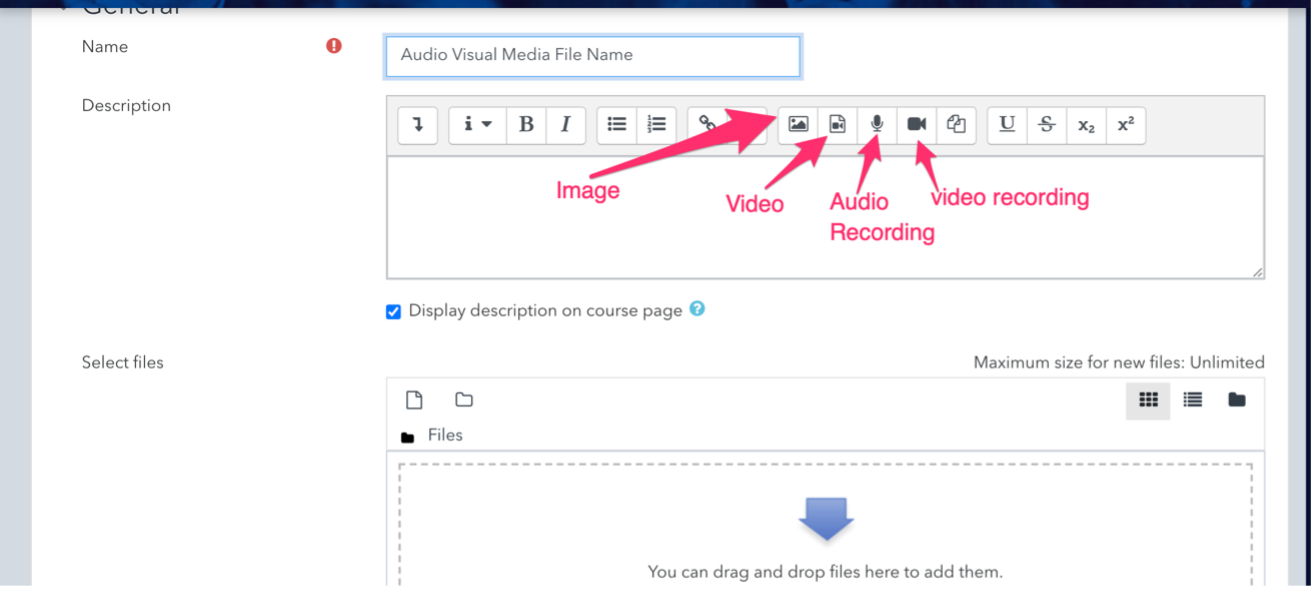
Step 2: Add the name of the file you are adding and then choose the image, video, audio recording or video recording button.
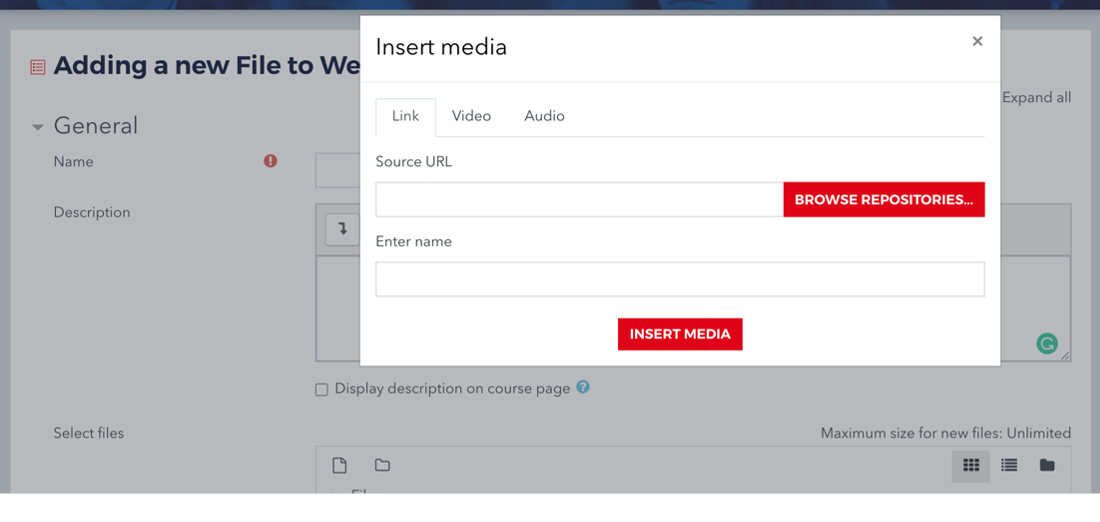 For a photo you click on
the landscape button and name and add your photo.
For a photo you click on
the landscape button and name and add your photo.
For pre-recorded video or audio, click on the second button and add your source URL and enter the name you wish to save it under (make it something obvious for your students) then click insert media.
If you wish to record yourself either as audio or video then click on the corresponding button and the following box will appear.
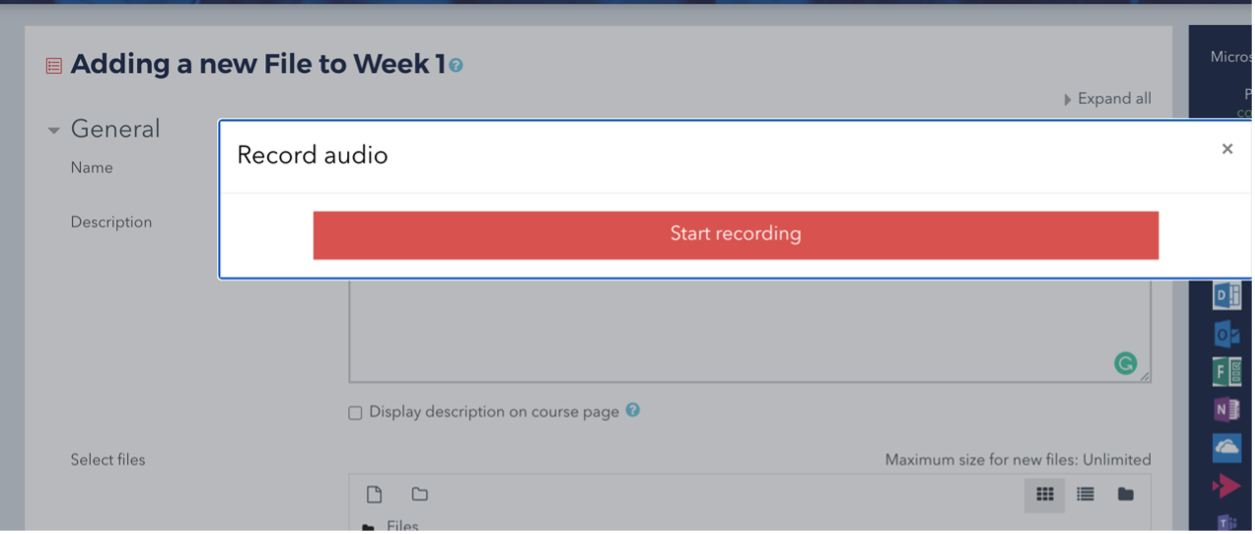
Press on the red Start recording box and away you go.
At the end remember to click on Save and return to course at the bottom of the page.
4. Create a ZIP File
To upload multiple files at once using the Moodle File picker, compress the files on your computer into a .zip file. A .zip file is a file type where multiple files or folders are compressed into a single, smaller file with a ".zip" file extension. Uploading multiple files to Moodle as a .zip file can save you time because it requires less clicking.
Windows Users
In your computer's file browser, hold down the Control key as you click to select the folders or files you wish to compress. Right-click any of the selected files. In the drop-down menu that opens, scroll to the Send To option, and select Compressed (zipped) folder. A new .zip file will appear in the same directory (folder) as the files you selected. You can rename the .zip file for easier identification before uploading it to Moodle.
Mac Users
In your computer's finder, right-click (control+click) on the folder or files and select Compress. A new .zip file will appear on your computer in the same directory (folder) as the files you selected. You can rename the .zip file for easier identification before uploading it to Moodle.
5. Add a Moodle Folder and Upload Files
To add a folder to Moodle you will need to create Zip folders as in the previous section. Then start as you would for adding a file, so:
Step 1: In the Activity chooser (bottom of the topic box, +Add an activity or resource)
Step 2: Click on the Resources heading and select the Folder icon, then click Add. The Adding a new folder page will open.
Step 3: In the Name field, provide a title for your folder (required). The name you enter will display as the link to the folder on your course page.
Step 4: In the Description field, add a brief description of the folder contents (optional). To display the description on the course page, check Display description on course page (optional).
Step 5: Add files under the Content heading. The easiest way to add files is using drag-and-drop:
Step 6: Arrange your computer's windows so that you can view both the Files area in Moodle and the files on your computer.
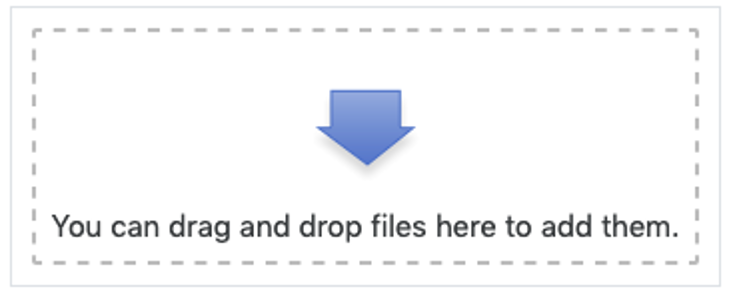
Step 7: Select and drag each file from your computer onto the large blue arrow in the Files area in Moodle.
Note: To upload multiple files at once, hold down the CTRL key on your keyboard (Windows), or the COMMAND key (MAC) as you select each of the files you wish to upload. Then drag the files into the Files area in Moodle.
6. Add a Moodle Folder and Upload Files using the File Picker
Alternatively, you can use the File picker to browse for files on your computer.
Note: The easiest way to upload multiple files with the File picker is to first make them into a .zip file, then unzip the file in Moodle.
Step 1: Under the Content heading, click Add...( ) at top left of the Files area. The File picker pop-up window will open.
Step 2: Select Upload a file (left) and then select Choose file. The File picker window will open for you to search for and select the file on your computer. Select the file you would like to upload and click Open. The File picker window will close, and the name of your file will appear next to the Choose file button.
Step 3: Select Upload this file. The File picker window will close, and the file will be listed in the Files area.
Step 4: If you have uploaded a .zip file to your folder, the next step is to unzip it. In the Files area, select the zip file icon. A pop-up window for the file will open. Click Unzip (at top). The pop-up window will close, and the original files will appear along with the .zip file in the Files area.
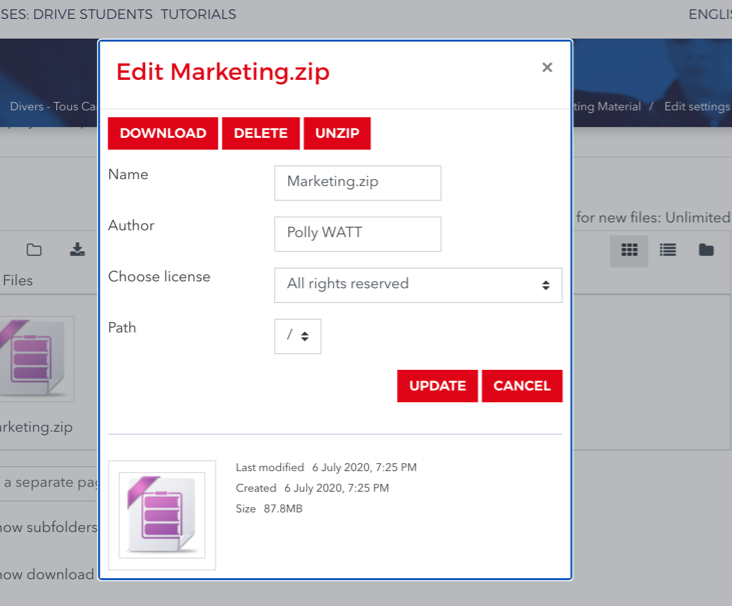
Step 5: (Optional) You can delete the zip file or leave it in the folder to allow students to download all the files at once to unzip on their own computers. To delete it, click the .zip file icon again and then click Delete (at top) in the pop-up window. Click OK to confirm the deletion. The pop-up window will close and the .zip file will be removed.
Step 6: To select how folder contents should display from the Display folder contents drop-down menu, choose: On a separate page or Inline on a course page.
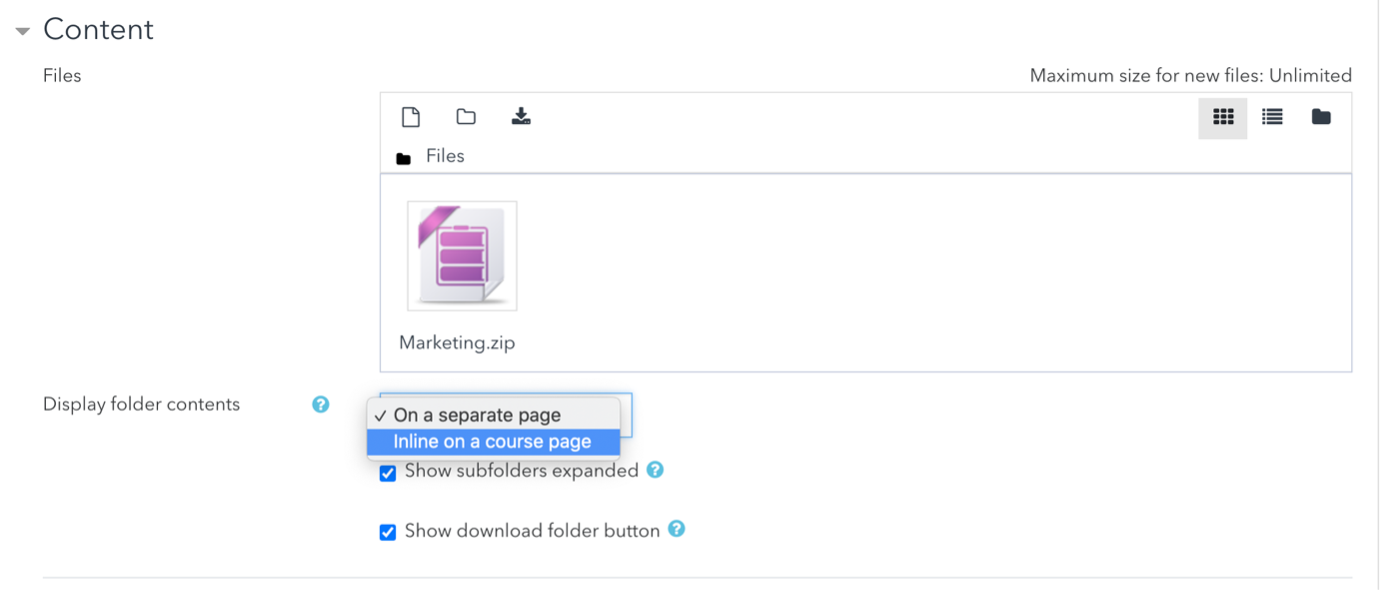
If you choose to display the folder contents on a course page, the description will be displayed only if "Display description on course page" is checked. Also note that when a folder is displayed on the course page, participants' view actions cannot be logged.
Step 7: To have subfolders expanded by default, select the check box for Show subfolders expanded.
Step 8: To allow students to download the entire contents of a folder as a .zip file, select the Show download folder button.
Step 9: Click Save and return to course
(at-bottom) to complete the file upload process. The Folder will appear in the
Section to which it was added with a folder icon ( ).
).
Step 10: To open the Folder, select the Folder name. Once open, a Folder shows a directory of files. To download files, students click a file name, or if set up as in Step 8: above, students can click the Download Folder to download the folder contents as a .zip file.
7. Organize the Files within a Folder
Files in folders are listed in alphanumeric order. To make the files appear in a particular order for your students, you will need to rename the files.
One option is to add numbers in front of the file names, for example:
01-handout.pdf
02-reading.pdf
03-spreadsheet.xlsx
04-instructions.docx
To rename files already in a Moodle Folder:
Step 1: Locate the folder you want to configure and click Edit, and from the drop-down menu, click Edit settings. The Updating Folder page will open.
Step 2: Under Content, in the Files area, open any sub-folders as needed. To rename a file, click the File icon. A pop-up window will open.
Step 3: In the Name field, edit the name, then click Update. The pop-up will close, and the Files area will show the new file name.
Note: DO NOT remove or change the file extension (e.g., .pdf, or .docx). A proper file extension is required for the file to download and open for your students.
Step 4: Rename any other files and click Save and return to course.
8. Adding a URL
If you want to add a URL for a course the easiest way to do this is to start as above
Step 1: Click on the Activity chooser (bottom of the topic box, +Add an activity or resource).
Step 2: Scroll down to the Resources heading and select the URL radio button, then click Add. The adding a new URL page will open.
Step 3: Fill in the name
Step 4: Paste the URL into the External URL link - add a description of what the link will open. Click on the Display description on course page and then Save and return to course.