Basic Course Parameters
| Site: | Watt Education |
| Course: | Setting up a Moodle Course |
| Book: | Basic Course Parameters |
| Printed by: | Guest user |
| Date: | Saturday, 17 October 2026, 1:33 AM |
Description
This is the first section of your learning. Go through this online booklet to get a first look at your Moodle dashboard.
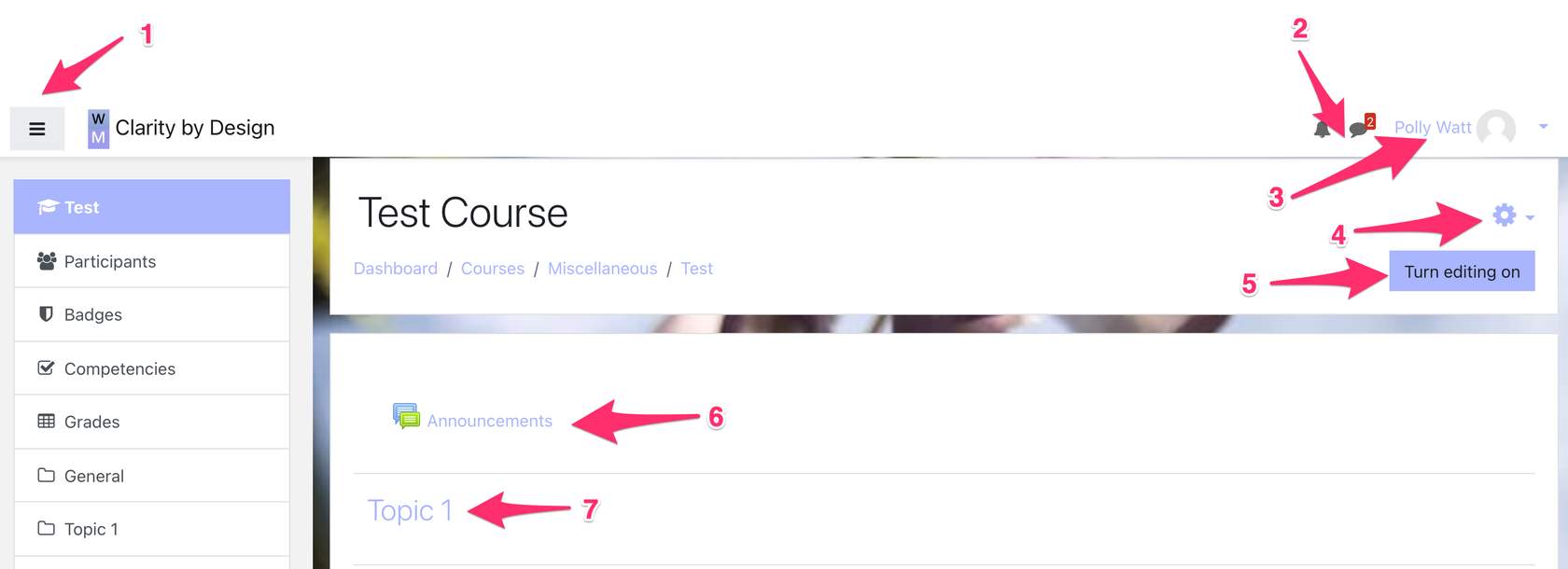
- Menu
- Messages
- Profile
- The settings cog
- Editing on/off button
- Announcements
- Topics
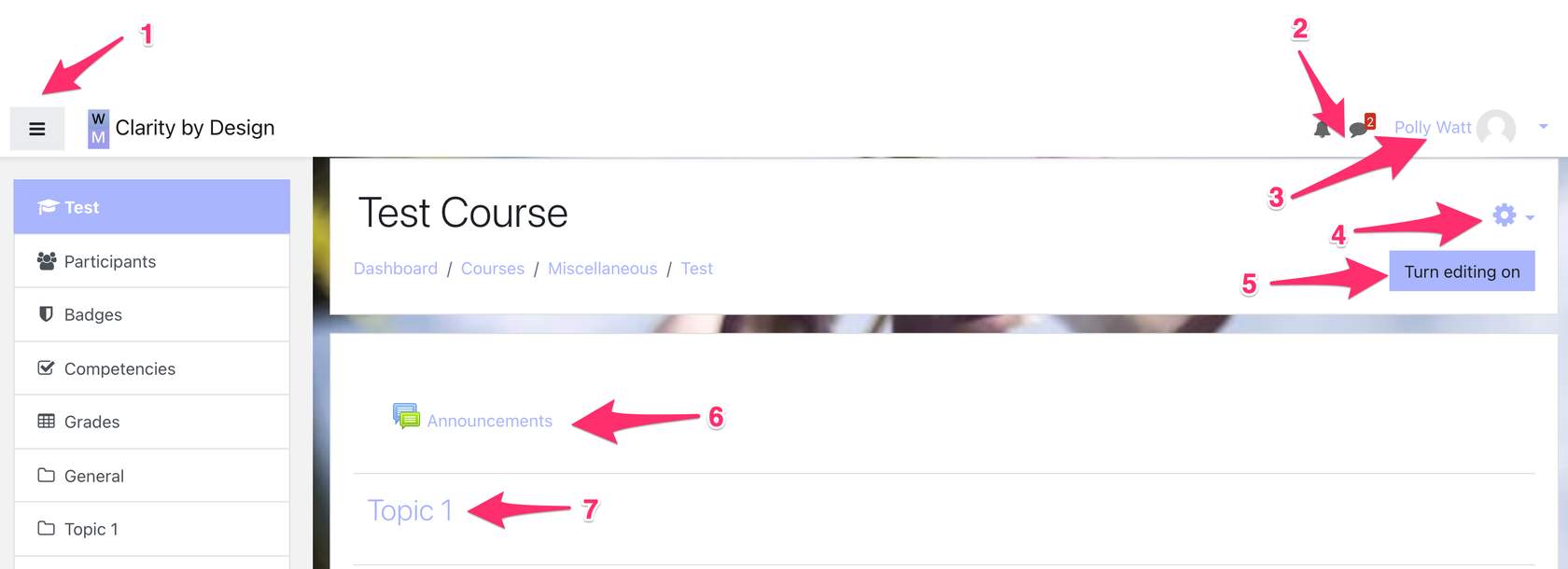
No 1 is known as the hamburger menu. This menu gives you access to the participants in your course, badges, competencies and grades. The items that you will use for this course are:
- The participants - students, teachers, managers. Every time you add a participant you need to give them a role. It is possible to add multiple participants using an .CSV file. Participants must already be on the database of users. You will need to ask your administrator to add new users. You can use guest access for your courses for anyone with the direct link to your course.
- Grades - this is your grade book. Whenever you create an assignment or test/quiz a new column will appear in your grade book.
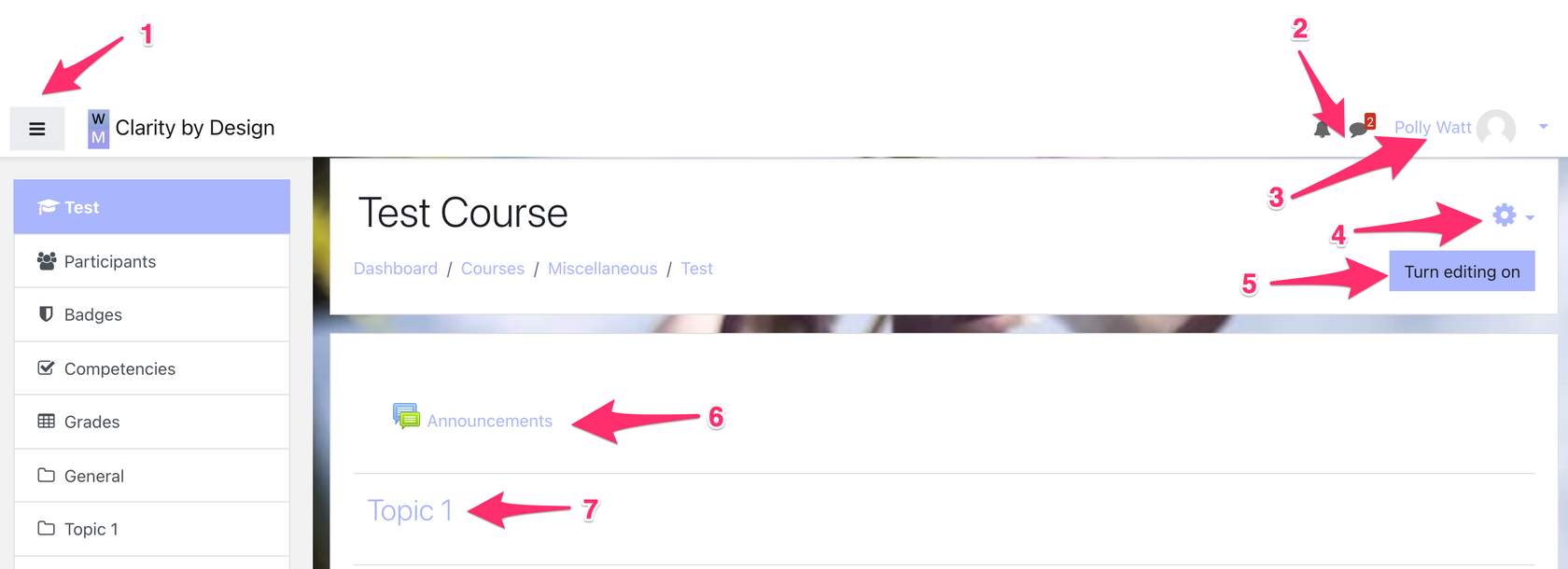
No 2 is a shortcut to your Messages. Here you can see any messages you have sent through the Moodle messaging system and you can see the student replies.
The Login Menu is found on the top right, next to your name. Within in you can find:
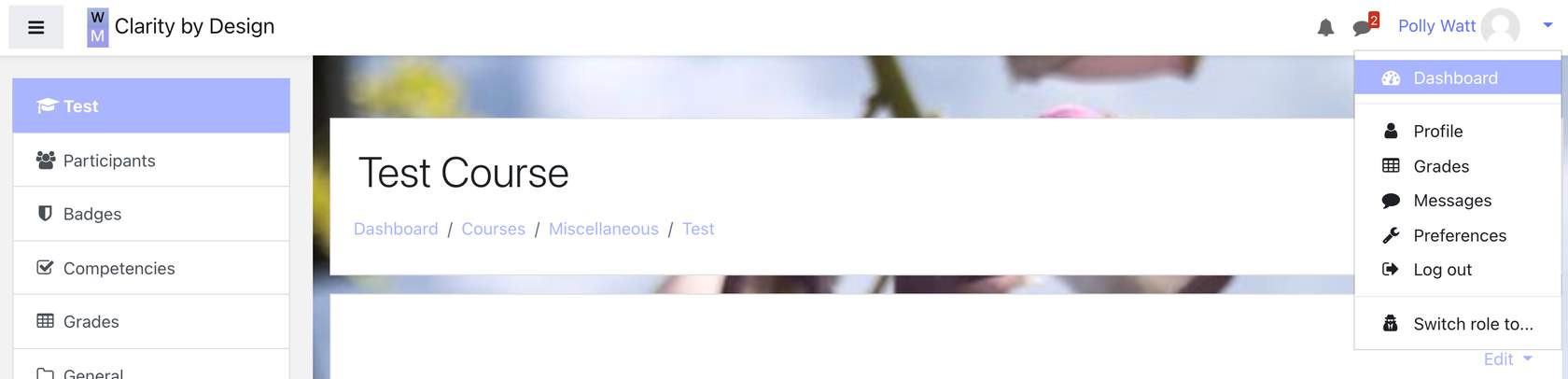
Dashboard: is the equivalent of your homepage
Profile: you can add your photo, set up where you live and fill in details about yourself.
- Grades: for any courses you are taking, or a quick link to the course grades where you are a teacher.
Messages: takes you to any messages you might have sent or received.
Preferences: allows you to change your password, language settings etc
Log Out
Switch Role To: This is a very handy facility, as it lets you see how other roles, such as students, will see the course you are creating.
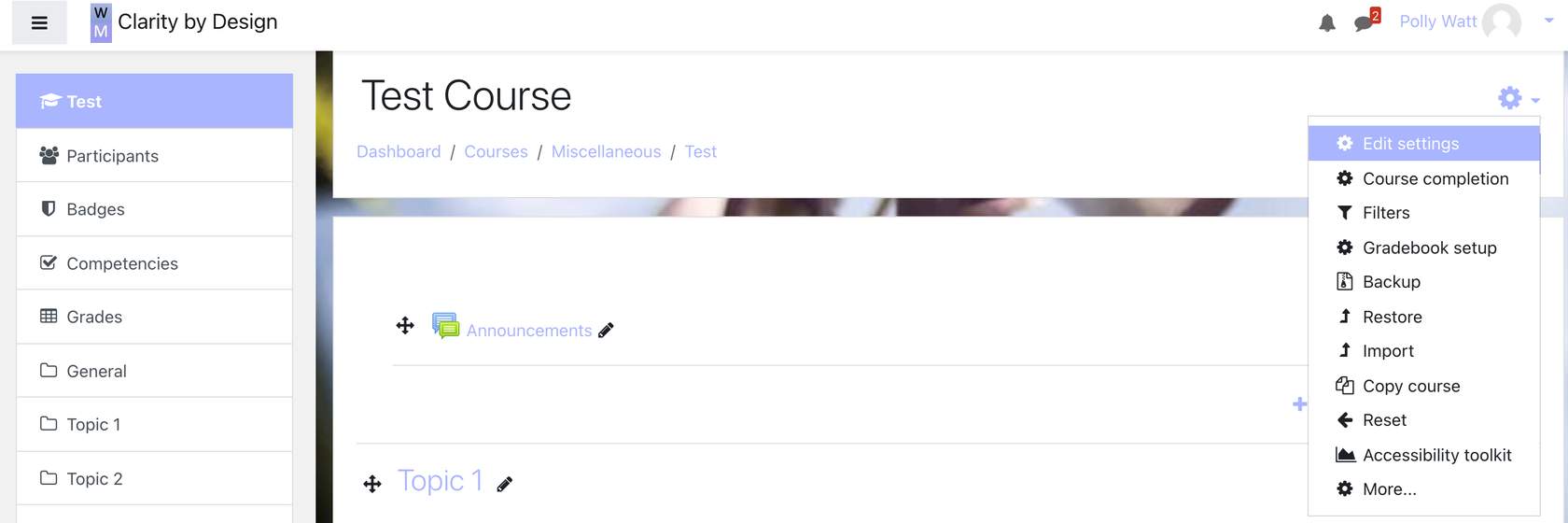
The Settings Cog is one of the most important places on your course page.
- Edit Settings: allows you to set the settings for your course, including the format that you wish to use for the layout of your page (topics, tiles etc)
- Course completion: with this you can bulk edit what elements of your course students must complete to pass the course.
- Filters: display H5P, MathJax, Activity names auto-linking and Multipledia plugins - the default option for these is "on".
- Gradebook setup - this is where you can modify your gradebook settings such as weightings, the order they appear in the gradebook, whether they make up part of the grade etc.
- Backup, restore, import and copy course are all options that allow you to use your content elsewhere, or content from elsewhere in your courses. Moodle files are .mbz
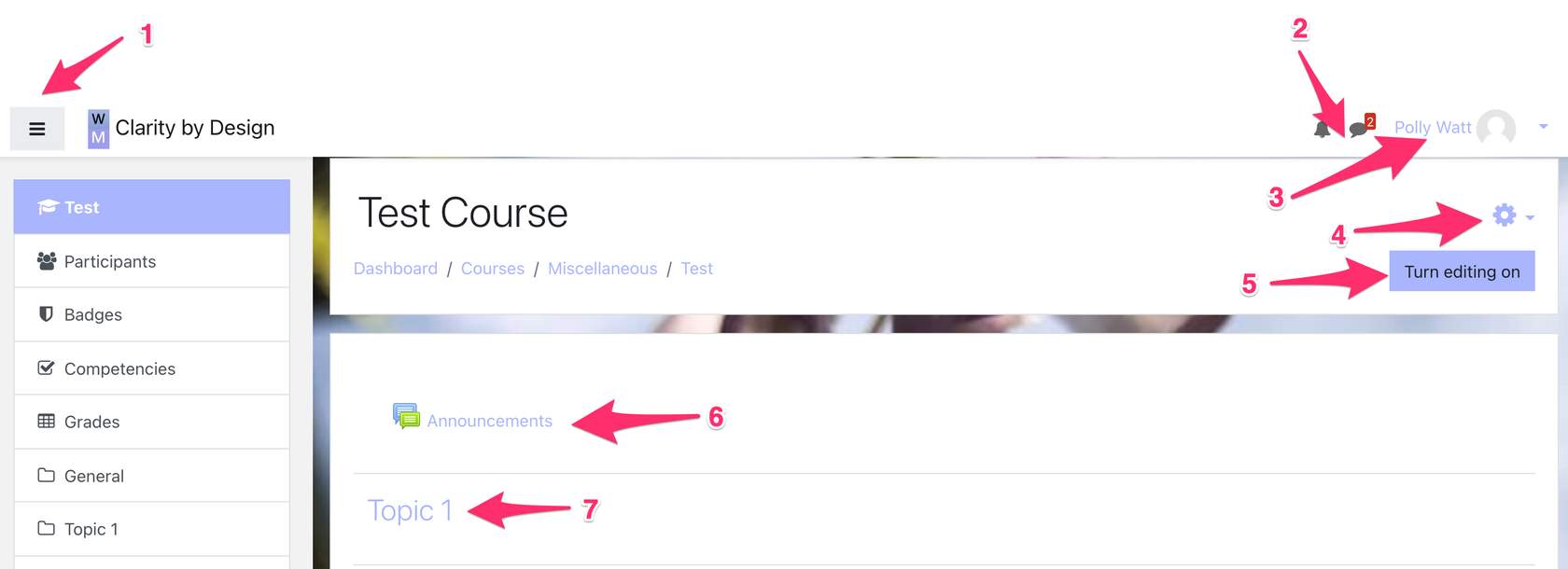
5. The Turn Editing On button brings up all the options that you will need to edit your course page, such as the ability to add resources to your page, name your topic sections, add sections etc.
6. All courses are created within a general section at the top, and this includes the announcements facility.
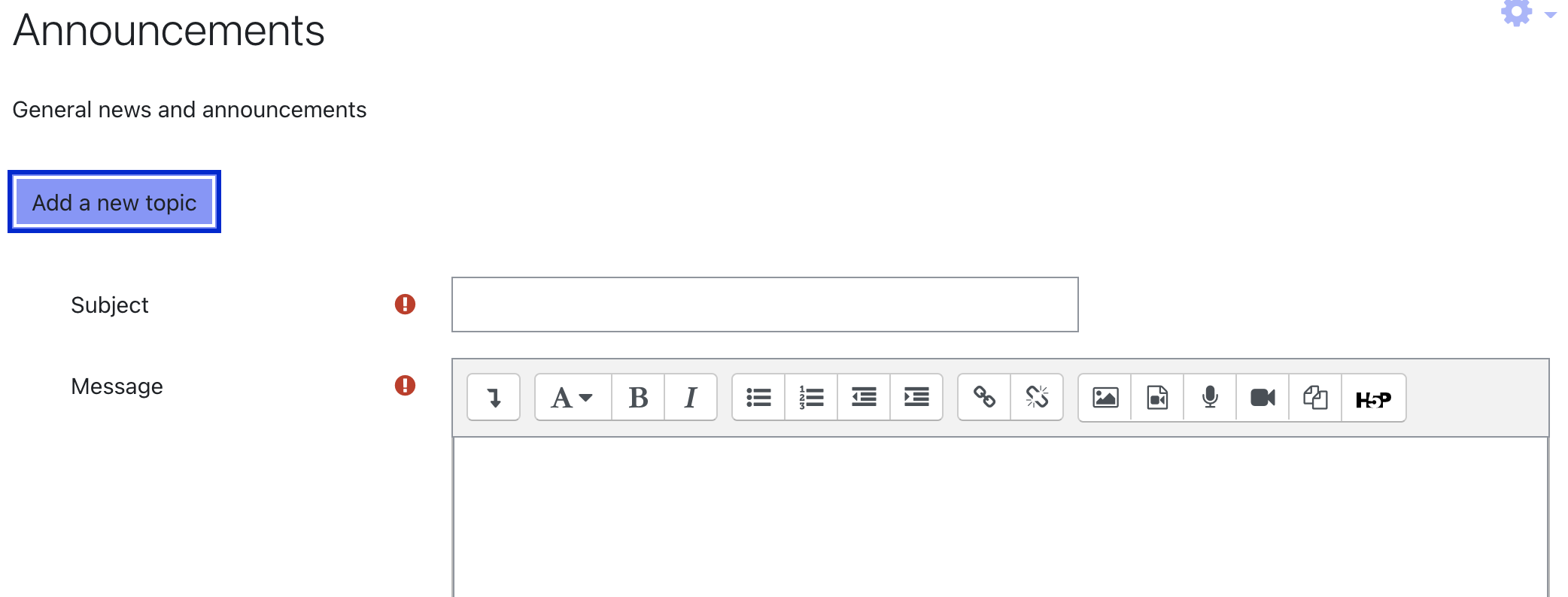
Announcements are messages for your students. It is a quick and efficient way to email all learners that are participants on your course.
When you have titled and written your message, you must click on "post to forum".
There is a delay of 30 minutes between writing the message and it being sent which gives you a chance for post send editing if necessary.
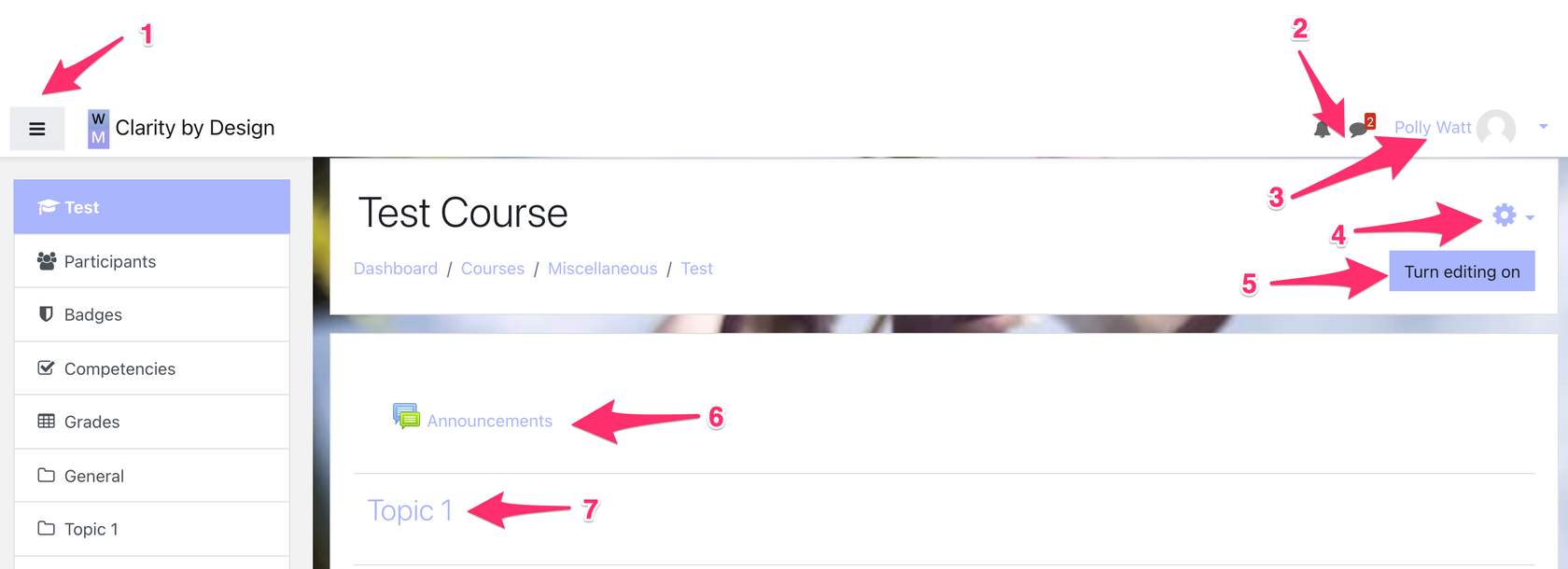
7. To change your topic titles you click on the pencil icon. When you have finished changing the title. Press return on your keyboard to save the new title.