Question Banks and Question Types
7. Select Missing Words Questions
Select missing words questions allow instructors to create questions that require students to select words or phrases from a drop-down menu embedded into a question text.
Example of a missing word question matching quiz question:
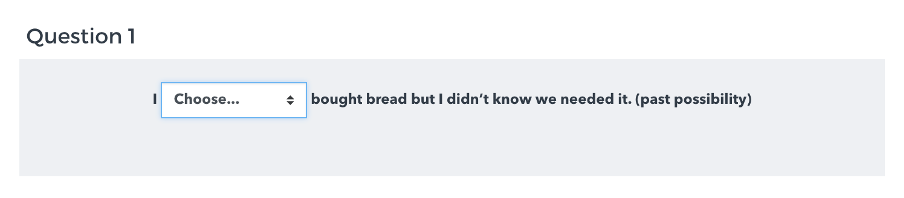
Step 1: In the Question Bank, select the desired question category, then click Create a new question... and choose Missing words. The Adding a question screen will open.
Step 2: Check the category – make sure the question is where you want it to be. Here that’s under Vocabulary, Finance and Investment.
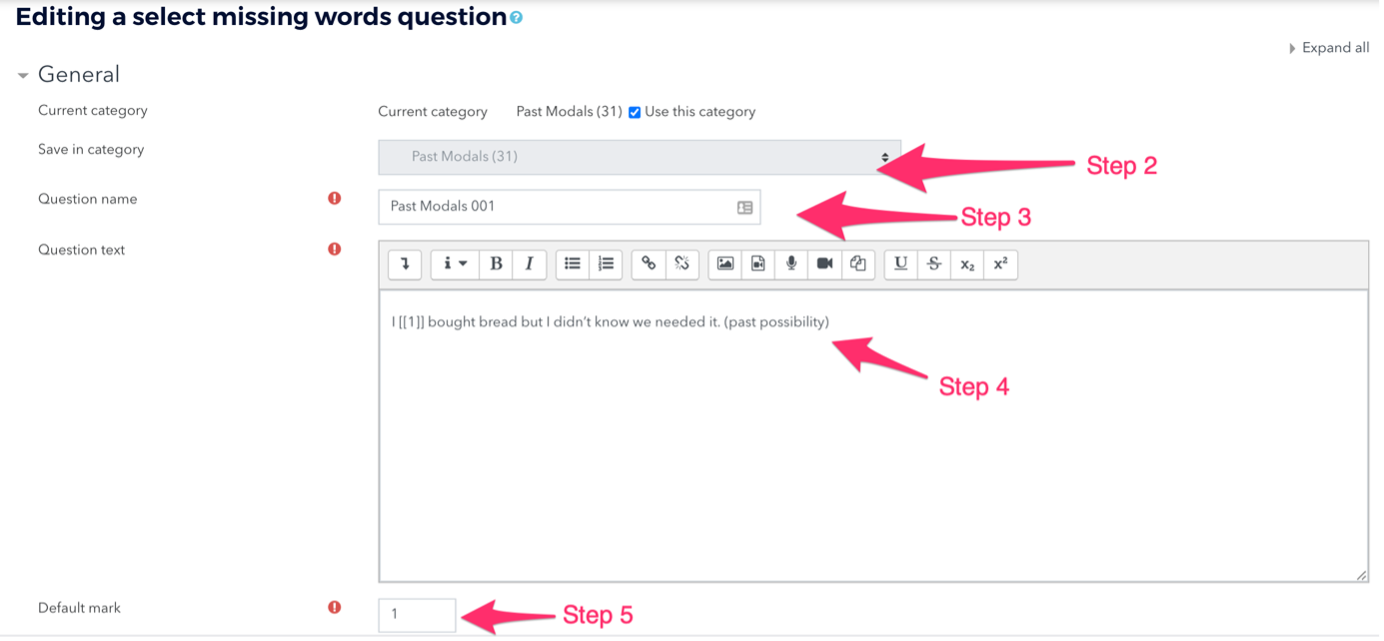
Step 3: In the Question name field, enter a descriptive name. This will make it easy to identify the question in the question bank.
Note: The question name is not visible to students.
Step 4: In the Question text field, enter the text in which you want your students to select missing words. To create a drop-down menu in the text, enter a [[number]] within double brackets. For example, if your first drop-down is [[1]], you will enter the correct answer for that dropdown as Choice 1 in Step 7.
Note: You can reuse an Answer multiple times in a question—just enter in the same [[number]] in each location in the question text where you want that answer to be the correct choice.
Step 5: Set the Default points for this question, which is the maximum points for the question.
Step 6: Select Shuffle to randomize the answers that appear in drop-downs.
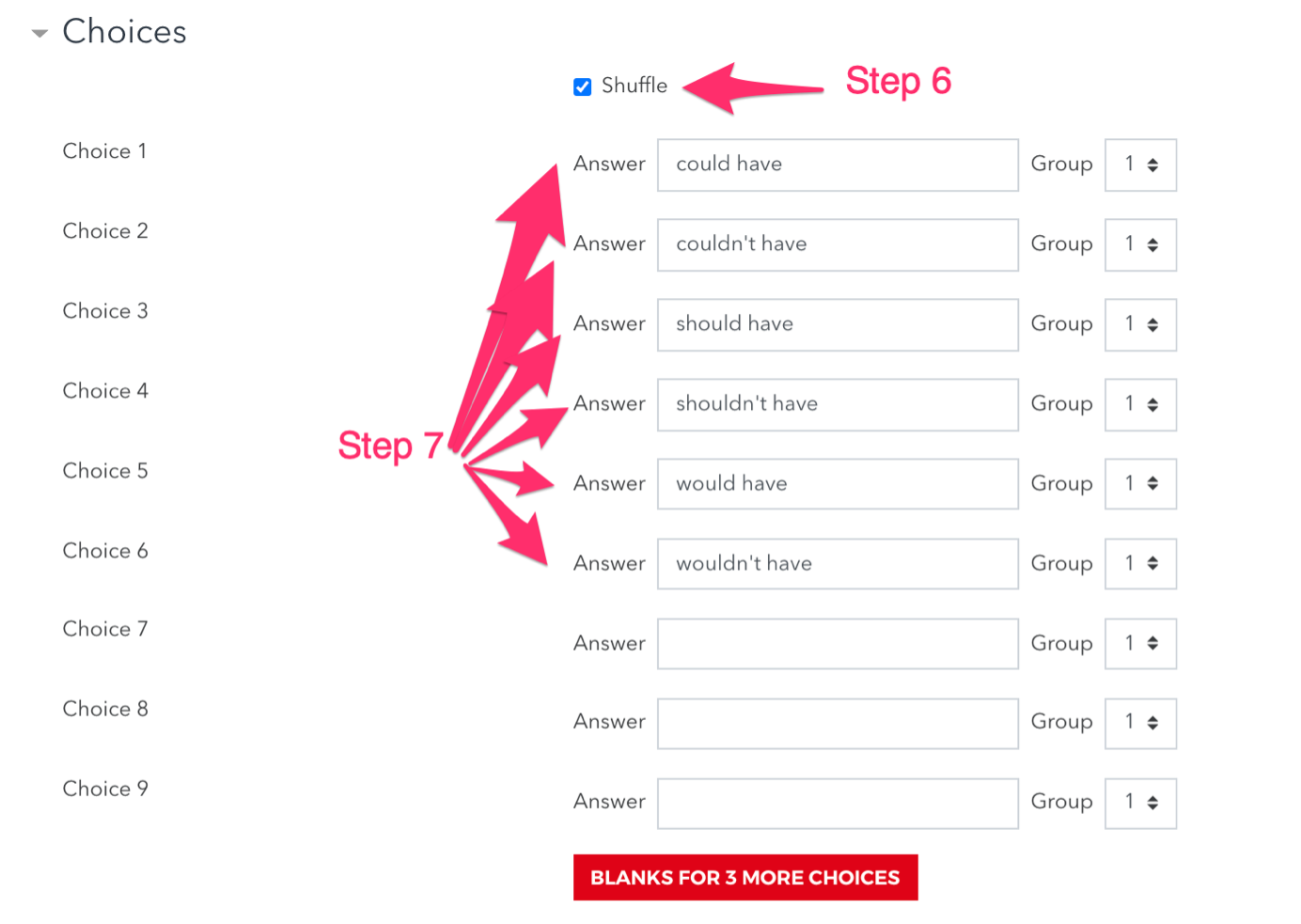
Step 7: Under Choices:
For each [[number]] you have entered, in the corresponding numbered Answer field, enter the correct answer that students should select from each drop-down menu. For example, for the question “I [[1]] bought bread but I didn’t know we needed it. (past possibility)”, the Answer field for Choice 1 should read "could have".
- Note: Each [[number]] entered in the question text must have a corresponding Answer under Choices.
- To add extra choices to drop-downs (i.e., incorrect answers), complete additional Choices using Choice numbers that are not associated with a correct [[number]] in the question text.
- When you have more than one drop-down in a question, you can set restrict answers to particular drop-downs according to the order the drop-downs appear in the question, by setting the Group option for Answers. Answers set to Group 1 will appear only in the the first drop-down to appear in the text, and Answers set to Group 2 will appear only in the the second drop-down, etc.
Step 8: Click Save changes to add the question to the category. You will be returned to the Question bank page.
Step
9: To make sure the question works correctly
click Preview (  ) next to the question in the
Question bank. An interactive preview of the new question will open in a pop-up
window.
) next to the question in the
Question bank. An interactive preview of the new question will open in a pop-up
window.