Question Banks and Question Types
6. Random Short Answer Matching
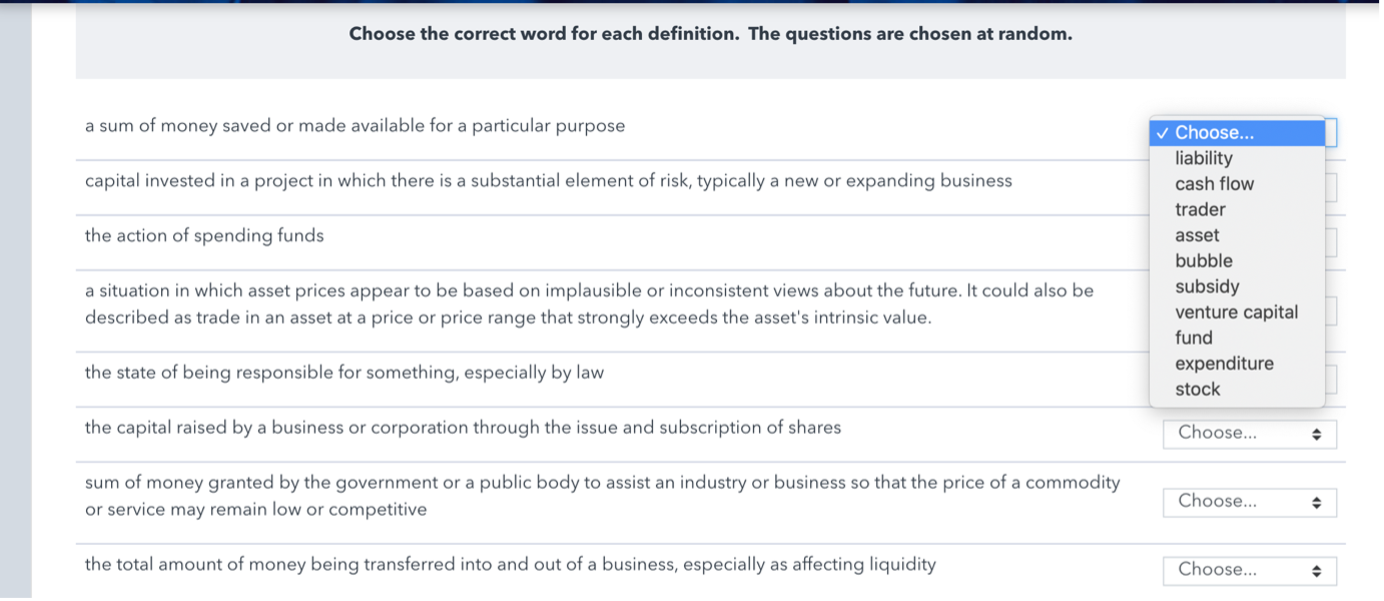
You can create a quiz using multiple short answer questions, using the method in Create a Short Answer Question above. In each question fill in just one answer. To a student this will look like a standard matching quiz.
Matching questions provide a list of sub-questions along with a list of answers. The respondent must "match" the correct answers with each question.
Example of a random short answer matching quiz question:
Step 1: In the Question Bank, select the desired question category, then click Create a new question... and choose Random short answer. The Adding a question screen will open.
Step 2: Check the category – make sure the question is where you want it to be. Here that’s under Vocabulary, Finance and Investment.
Step 3: Give the question a descriptive name - this makes it easy to identify it in the question bank. The question name is not visible to students.
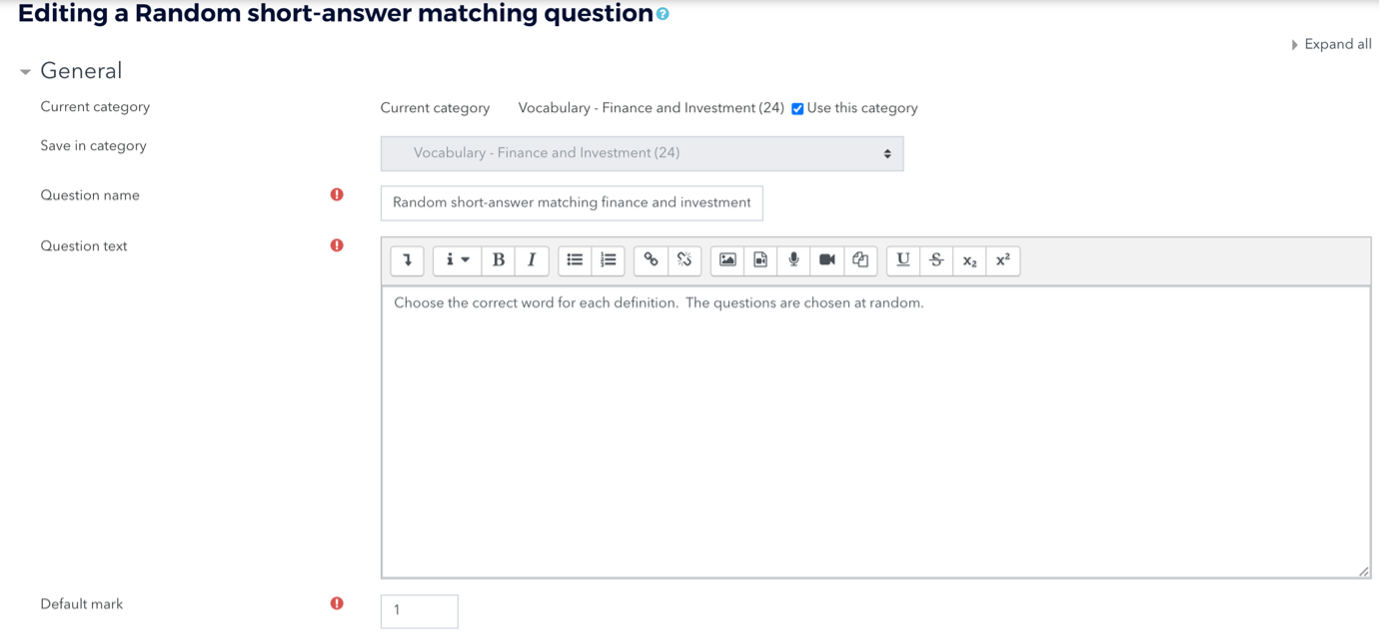
Step 4: Enter a question in the Question text field to tell the students what they are matching such as “Choose the correct word for each definition. The questions are chosen at random.”
Step 5: Set the Default mark grade (i.e. the maximum number of marks for this question).
Step 6: For Number of questions to select choose up to 10. This will take 10 of your short answer questions in this category and use them and their answers.
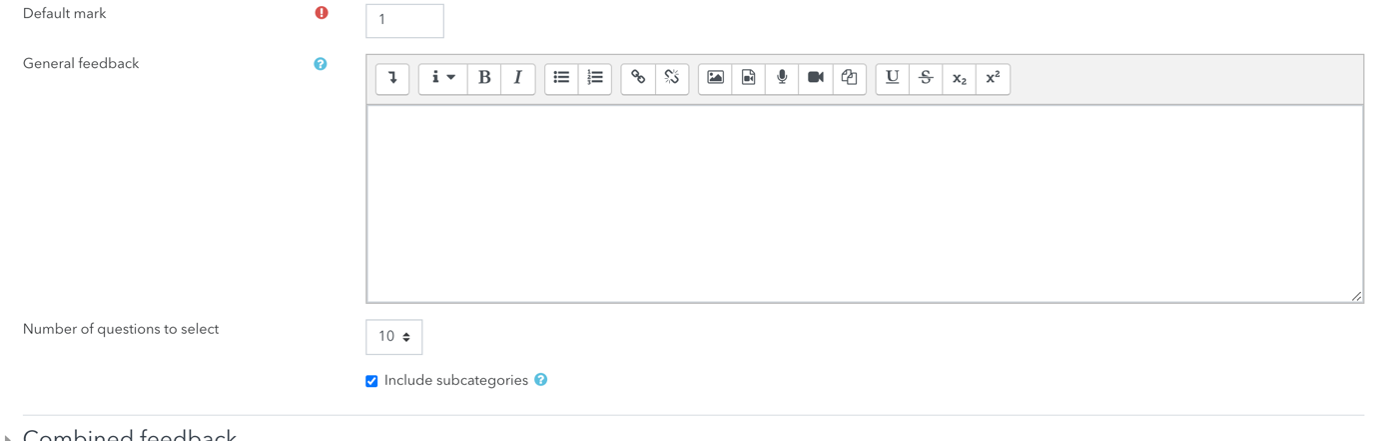
Step 7: Tick the include subcategories box.
Step 8: Click Save changes at the bottom.
After creating a question, be sure to check to make sure the question works correctly. Click edit next to the question in the Question bank to view a preview of the new question.